Pretty Words – Retouching Existing Documents #4

Past articles in the series:

1. Pretty Words – A Practical Guide to Formatting for Online Publishing

2. Pretty Words – The Importance of Formatting

3. Pretty Words – A Good Start is Key

Last week we talked about how to create a template for all your new documents. You can read the explanation of how to put the template together in the last article or get the one I prepared for you.

Using the template will allow you to reduce the time actually spent formatting the document for publishing.

Sometimes though we cannot start from scratch and we already have existing documents or documents that someone else gave us.

In this article I will explain how to determine if there is a problem with the document you already have and, if indeed it needs work, how to turn it into a document that can be easily prepared for electronic publishing.

The first step is finding out if there is a formatting issue in the first place. As we discussed multiple times, the major source of problems will be manually applied formatting other than the simple bold, italic, underscore etc.

Let’s say you have a document like this:

clip_image002

I can already tell you this document is going to be a problem. How? Just check the type of font used for the paragraph and look up in the Ribbon for the Normal Style. As you can see, they are different. Same for Heading 1. This document has a lot of manual formatting that will become a problem later causing your eBook not to scale text correctly or not allowing the reader to change font face and potentially other problems.

If you wanted to really check the extent of the formatting that was applied, you can use the Style Inspector. The Style Inspector in Word 2013 will tell you whether any text has extra manual formatting applied. The Style Inspector is an advanced command and is not in the Ribbon by default. To launch it you need to click on the Home Tab
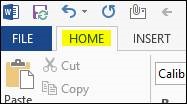
clip_image004

Then click on the little arrow at the bottom of the list with all the text and paragraph styles.

clip_image006

This will bring up the Styles window. At the bottom of the window you’ll find the button for the Style Inspector.

clip_image008

When you click on any text in your document, the Style Inspector will tell you the default paragraph and text formatting plus any paragraph and text formatting that has been applied manually.

clip_image009In this example you can see that default formatting for the paragraph is Normal and that text justification and an indent for the first line have been manually applied. You can also see that the default formatting for text is the Default Paragraph Font, or the font assigned to the Normal style, and that a manual font of Times New Roman has been applied.

For a document to be all right, there should not be any “Plus” formatting applied. The formatting of the paragraph and the text needs to reflect the formatting of the Style that is assigned to it, with no additional changes. If in the document you have two pieces of text that need to be formatted differently in the final output, they should have different styles applied to them, exactly like we did in the last article when we created a style for the first paragraph in every chapter and a style for centered text for the paragraph separators.

Because manual formatting can happen at any point in the document, you might have to go through it page by page and check if there is anything suspicious such as different fonts, different paragraph spacing and indent etc. In general look for anything that seems out of place or looks different from the text around it. When you find something, use the Style Inspector to check if there is manual formatting applied to that sections by clicking on it and activating the Style Inspector window as described above if you do not have it opened already.

At the end of this process we should be able to tell if the document is properly formatted. If you did not encounter any manually formatted text and everything matched the corresponding Style formatting, then you are good to go. Great! If that is not the case, you have several options depending on the extent of the changes you need to make and the length of the document.

If you are dealing with a few fixes here and there, the best way is to select the text or paragraph and apply the appropriate Style. To do this, select the text you want to change and click on the Style you want: Normal for the body of the document, Heading 1 for the chapter headings.

Note: pay attention to the text that has been formatted as italic or bold. That should not change as you apply the new Style. That is the intended behavior and exactly what you want in nearly 100% of the cases. If you want to remove that formatting as well, you can select the text and clear formatting by pressing this button in the Ribbon:

clip_image011

Pressing the “Clear all Formatting” button will remove all the formatting from the selected text and return it to the Normal Style. Only use this method if you are absolutely certain that you are not using any formatting such as bold and italic on purpose.

If you want to use other styles such as the one for centered text of the one for the first paragraph in the chapter, you’ll have to define them in the document as I explained in the last article.

I must say that in the vast majority of cases you’ll really need the two styles for the text and the chapter headings. And you definitely should start there. The beauty of eBooks, among many other things, is that they are not a static medium like a print book. You can modify the book at any time and all your readers – present, past and future – will get the new version. So, especially for the first few documents you format yourself, stick with the basics.

If you are dealing with a large number of changes, the best and quickest way to get back on track is to select all the text in the document and paste into the document template we created in the last article while merging the formatting.

To do this you need to have both your original document and the template open:

· Select all the text in the original document by clicking in any point in the document and press the CRTL key, hold it and press the A key (CTRL+A). This shortcut will select all the text. You can let the keys go now 🙂

· Copy the selected text to the clipboard by pressing the CTRL key again, hold it and press C (CTRL+C) for Copy. Now all the text in the document is in the clipboard, ready to be pasted somewhere else.

· Now move to the template document, delete any text that you might have in it and make sure you click on the Normal Style in the Ribbon before pasting the content of the original document

· Press the CTRL key, hold it and press the V key (CTRL+V) to paste the contents of the clipboard in the template document.

· Once you paste the text, it will look exactly like in your original document. Click on the little icon that says “(Ctrl)”. From the menu select the second option or Merge Formatting. Alternatively, as soon as you paste the text, press the CTRL key again and then the key M.
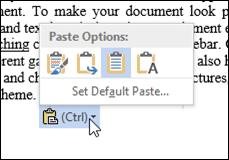
clip_image013

This will leave you with a plain document all formatted using the Normal Style. All the text formatting such as Bold and Italic will be preserved. All the manual formatting that was applied to the paragraphs should all be cleared and we’re now almost in a goods spot again.

The only thing left to do is to format the chapter headings with Heading 1 and, if you want, the first paragraph in the chapter to First Paragraph Style which is already defined for you.

Don’t forget to save the document with a different name by going to File, Save As and choosing an appropriate name. I usually pick the title of the book and append the word “_FINAL” to signify that this is the document I will use for formatting.

Regardless of how you got here you should have a pretty clean document:

· Chapter headings are formatted with Heading 1, no manual formatting applied.

· The body of the document is all formatted with Normal, no manual formatting applied other than text level formatting such as bold and italic.

· Optionally the first paragraph of each document is formatted with First Paragraph.

· Optionally the paragraph separators are formatted with Centered Paragraph.

This concludes the stage of preparing the document for formatting. The companion video to this article is here.

Now we’re ready to go to the next step and leave Word to dive into other tools to assemble the different pieces of the eBook together.

If you have questions, please contact me @robertoruggeri
Pretty Words – Retouching Existing Documents #4

Permafree: The Voyage, Week 4

I can’t believe a month has already passed by since Amazon matched The Priest’s price to free. The month of April has been sleepy in the downloads department, 36 so far, but even one or two of them at day make a difference in climbing the science fiction and dystopian category. Again, this is a marathon not a sprint.

Following several marketing suggestions I was given by both Julia Hughes and Sean Campbell, I have lowered the price of all my books to $2.99, and they will be soon out of kindle select and available on every platform through Smashwords.

Amazon.com Best Sellers Rank: #7,346 Free in Kindle Store (See Top 100 Free in Kindle Store)

Amazon.co.uk Bestsellers Rank: #10,239 Free in Kindle Store (See Top 100 Free in Kindle Store)

Permafree: The Voyage, Week 4

Pretty Words – A Good Start is Key #3

This week we’ll get deeper into the workflow of formatting your novel. I will use Word 2013 as my word processor, even though the recommendations and steps will largely apply to any recent version of Word or comparable programs. Additionally, we’re not going to deal with embedded images for now. They add quite a bit of complexity, mostly due to the variety of devices that your eBook can be read on. We will deal with images in a future article.

Without a doubt, the single most important piece of advice I can give you when it comes to formatting your work, is to start with a clean Word document. In other words, the work of formatting your document starts as you write it, not when you’re done.

What do I mean by “clean?”

A clean document is one that avoids, as much as possible, any direct text formatting. While it’s Ok to apply formatting such as bold and italic, you should avoid at all costs formatting such as font size, color, paragraph spacing and indent, page margins, tabs or spaces to align text, multiple paragraph marks to go to next page, page borders etc.

The reason is because all these settings translate very poorly to an electronic format that can be read on a multitude of devices. Additionally you will want to leave the reader in control of settings such as font size and font face.

Before we start, I want to briefly explain how Word deals with text formatting. Word uses Styles to define how text will look like. A Style is a collection of properties such as font size and color, paragraph spacing and indent and many, many others. You use different kinds of Styles for different kinds of texts. A Style for the body of the document, a Style for the chapter titles, etc. If you want to change the look of a particular kind of text, you simply change the Style definition. In a single step you will have changed the look of all the text and paragraphs with that style in the document, without having to manually change each individual piece.

This is a very powerful feature in Word, unfortunately is one of the least used and understood. Understanding how this works will make your life much easier later.

This gives us some indication of how we need to approach the document:

· Every piece of text that should be formatted in a specific way, should have its own style definition. In our case we care about:

o The style of the chapter headings – typically “Heading 1” in Word

o The style of the text of the document – typically “Normal” in Word

o The style of the text of the first paragraph in each chapter – we’ll have to define this one

o The style for centered text – we’ll have to define this one

· Any changes to the way the text looks should be applied to the style, not the text or the paragraph. This way the definition of the formatting will remain the same for each piece of text with that formatting

· The only formatting that should ever be applied to the text directly are bold and italic

The good news is that when you start a new document, Word already gives you most of what you need. The “Heading 1” and “Normal” Styles are already defined and you should use those to begin with. I will show you how to define the other two.

For this first part I am going to assume that you’re starting your novel from scratch with a new document. That will give you a basic understanding of the process. In the next article we’ll have a look at how to turn your existing document into one that can be easily formatted.

The first step is to create a template that we will use for all of our future novels. The initial part is always the same, so let’s do it once and for all.

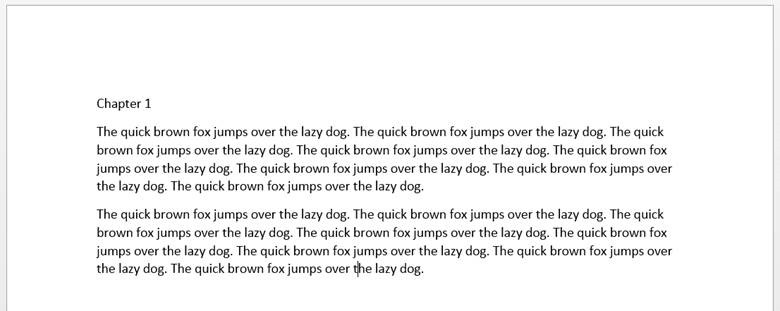
Let’s start by creating a new document in Word. Write “Chapter 1” and press Enter, then write two full paragraphs separated by paragraph marks. Make sure you write enough text so that the paragraphs wrap around.

At the end you should have something like this:

clip_image002

The first thing we want to do is define the style for the paragraphs of the novel. We will first change the formatting of the first paragraph in the text to what we want, then update the definition of the Style “Normal” to reflect the changes we made. This way everything that is formatted Normal in the document will look exactly like we want.

Let’s start by right clicking on the second paragraph and select “Paragraph…” This will open a dialog box that will allows us to change the paragraph formatting.

Now let’s do the following:

· Under Indentation, Special, select “First line” from the drop down and enter 0.2” where is says “By”.

· Under Spacing, After, enter “0 pt”

· Under Line spacing, select “Single” from the drop down

clip_image003

Press the Ok button to close the dialog box and get back to the document.

Now the first paragraph will show a small indent and no spacing after it. We want to change the definition of the “Normal” style to reflect that. To do that, right click on the Normal style in the toolbar and select “Update Normal to Match Selection”.

clip_image005

Once you do that, every paragraph in the document will change to show the formatting we just applied. Since every single paragraph is formatted as Normal, this is expected and a good thing indeed.

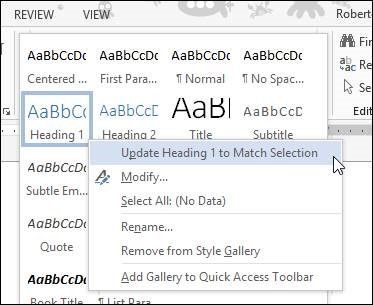
Let’s get to the heading style now. Click on the paragraph that says “Chapter 1” and select Heading 1 in the list of styles. You’ll notice now that the chapter heading is not quite right, as it starts with an indent instead of right along the left margin. To fix that, right click on the “chapter 1” text and select “Paragraph…” Under Indentation, Special, select “(none)” and then press Ok. We now want to update the definition of Heading 1 by right clicking on the Style and selecting “Update Heading 1 to Match Selection”

clip_image007

The last thing we want to do is create a style for the first paragraph in each chapter. When not specified otherwise, the Kindle reader will automatically apply a paragraph indent. This improves legibility and it’s generally a good thing. It’s also good habit to have the first paragraph of each chapter indented at 0”.

To do that, right click on the first text paragraph in the template, right after the chapter heading and select “Paragraph…” Under Indentation, Special, select “(none)” and then press Ok.

To define a new style based on the new formatting, open up the list of styles and select “Create a Style”.

clip_image009

Name the Style “First Paragraph” and press Ok to add it to the list.

At the end of the process, you end up with a document that looks something like this:

clip_image011

Your styles will be ready to use:

· Heading 1: use this for all the chapter headings

· First Paragraph: use this for the first paragraph of each chapter

· Normal: use this for all the rest of the document

Now you can save this document and use it whenever you want to start writing something. Just make a copy and use it as a starting document. This way all the styles will be already defined for you and you can concentrate on writing right away.

As a bonus I have shot a short video to show you how to do it, and I have uploaded a document template here where I have already done all this for you. In the video, I also show you how to define a fourth style for centered text, used mainly as a separator between paragraphs when you do not need a new chapter.

Next time we’re going to look at converting an existing document into a format that will be easier to format. See you next time. If you have any questions ask Monica or me @robertoruggeri.

Pretty Words – A Good Start is Key #3

Permafree: The Voyage, Week 3

It is the second day of April, and there are only 4 downloads in the USA, which combined with the fewer and fewer downloads experienced during the last seven days has determined The Priest’s fall of grace from the Free Bestseller chart.

Amazon Best Sellers Rank: #7,530 Free in Kindle Store (See Top 100 Free in Kindle Store)

To gain back some visibility, I’ll have to submit The Priest to all the sites that advertise free and discounted titles.

But, besides the bleakness of the data, I found this while browsing, and although I know the banner shows The Priest as a suggestion because I was checking my book on Barnes & Noble, this sight still made me happy.

Avvistamenti Maggio 2014

Permafree: The Voyage, Week 3

Operation Mallory

Several times, I’ve extolled the virtues of the indie world and the wonderful authors I met on Twitter and Facebook. When people complain that technology is limiting interactions in real life, I can’t help but think that I would be so alone without said technology.

Recently, Julia Hughes contacted me and asked if I wanted to give a hand in a collective effort to help a fellow author in need, Stephen C. Spencer. Stephen has been battling brain cancer for a while, and doesn’t have the time and energy to keep marketing his books. As any indie author knows all too well, if you don’t advertise your books they disappear, buried under millions of other titles. Soon, your sales dwindle to nothing and your livelihood is seriously compromised. Imagine having to pay exorbitant medical bills on top of that.

Authors following Stephen on Twitter and Facebook—fans of his books—touched by his personal tribulation decided to do something for him, and Operation Mallory was born.

Several authors have come together to help revamp Stephen’s thriller series and put his books once again on bookshelves worldwide. Sean Campbell has put together a new website, found a graphic designer, Clarissa Yeo, who created brand new covers for the series, coordinated the cover and blurb release, and looked for venues where to advertise the titles. As you can imagine, it took a great effort to manage a launch of such magnitude.

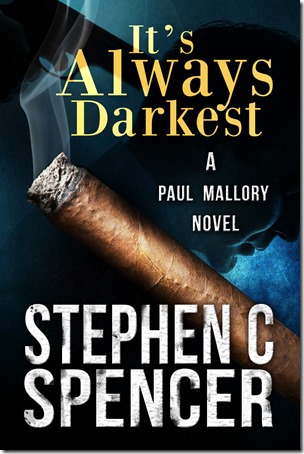
Copy of It's Always Darkest Paul Mallory 1At the moment, the first Paul Mallory novel, It’s Always Darkest, is free on Smashwords. If you like thrillers, grab a copy and please consider spreading the word. Sharing is free, but it can make a huge difference for an author to be discovered.

Operation Mallory

Pretty Words: A Practical Guide to Formatting for Online Publishing– The Importance of Formatting #2

Formatting eBooks is very different from formatting for print and has different requirements. When formatting a book for print you know exactly what the end product is going to look like. As an example, for a print book you will know:

· The size of the pages in inches or millimeters

· The size of the font

· Line spacing, indent and margins

· The number of pages

· Where exactly each chapter starts and ends

Since every printed copy of a specific book looks exactly like the others, you can format your work with that in mind and optimize as much as you can for readability. As a formatter you have full control of what the reader will actually see and experience throughout your print book.

This is quite different for eBooks.

In the case of eBooks you know pretty much nothing:

· The book might be read on a small phone or a large tablet changing the size of the page itself and how much text you can fit on it

· The reader might want to pick different font sizes and styles based on her or his personal preference

· The reader might pick different column layouts or multiple columns per page

· The concept of a “page number” loses most of its meaning due to all the factors above

AT this point you might ask “why should I spend any time formatting my eBook?”

Most eBook readers, like the Amazon Kindle devices, will allow the reader to control these aspects of the reading experience providing the user with unprecedented control compared to the traditional paper medium. Readers will expect your eBook to behave in a certain way when changing font sizes or font faces.

On the side you can see an example of the text appearance dialog for Amazon’s Kindle Fire clip_image002[54]HDX. From here you can control the text size, the background, the margins, line spacing and the font face. In some Kindle apps you can also control the number of text columns per page.

Common issues with a poorly formatted eBook are fonts not resizing or font face not changing despite the reader changing the settings, problems with font color like a white font on a white background, problems with pictures being too big or too small, etc.

This is in my opinion a bad experience. Some books might have a need for fixed formatting, with a specific font and font size. In those cases it’s really important to understand that the reader might be confused and due to the extremely large number of devices and screen sizes, you might run into formatting issues that actually make your book harder to read. Not something you generally want.

Formatting an eBook is a crucial aspect of the publishing workflow and needs to be taken seriously to make your product look professional and provide the reader with a great reading experience.

The formatting workflow looks something like this:

· Preparing the content for formatting

· Assembling the book content: cover, front matter, content, back matter

· Adding content navigation

· Adding the eBook metadata

· Testing the eBook

After successfully testing the eBook you will have your content ready for publishing.

Next article will start looking at how to prepare your content for formatting and make your life easier. See you soon. If in the meantime you have any questions, feel free to hit me on Twitter @robertoruggeri

clip_image002_thumbAbout me: I am a technology freak, that’s pretty much it. I spent pretty much all my life in Information Technology. I started working for Microsoft in 1998 and I am still there making up the future of Xbox. When I am off work I play videogames, but every day that goes on I feel more like a videogame collector, I wish I could play them all. I am an amateur photographer, a Canon guy really, and a comic book collector, X-Men FTW! You can find me on twitter, Xbox and PlayStation Network and I have some photos up on Flickr if you want to connect.

Pretty Words: A Practical Guide to Formatting for Online Publishing– The Importance of Formatting #2

Premafree: The Voyage, Week 2

Last Saturday, the weekend started with 1011 downloads.

Amazon Best Sellers Rank: #1,203 Free in Kindle Store (See Top 100 Free in Kindle Store)

Seven days later, the week ended with 1130 downloads. As you can see, the number of downloads is considerably slowing down.

Amazon Best Sellers Rank: #4,944 Free in Kindle Store (See Top 100 Free in Kindle Store)

Also, there was the odd download on Amazon.co.uk

Amazon Bestsellers Rank: #8,075 Free in Kindle Store (See Top 100 Free in Kindle Store)

And the equally solitary one on Amazon.ca

Amazon Bestsellers Rank: #2,593 Free in Kindle Store (See Top 100 Free in Kindle Store)

Finally, on Smashwords, The Priest was downloaded 151 times.

Premafree: The Voyage, Week 2

Writing Process Blog Hop Tour

The Writing Process Blog Tour:

Last week, Angela Roquet invited me to participate in the Writing Process Blog Hop. She asked me to answer a few questions and to introduce a few other authors. I immediately accepted, because if there is anything I like more than writing and reading, is talking about the great authors I’ve been fortunate enough to meet through Twitter and Facebook. The camaraderie and support of the indie community is something rarely seen in other fields of life. People who were strangers to me helped me in a way I never thought possible. I am honored to count them as my friends now.

clip_image002I met Angela last year, when a common author friend, Clare Davidson, invited both of us to participate in yet another blog tour. Angela is one of those individuals with sunny and supportive personalities who are a pleasure to have around. Her series, Lana Harvey, Reapers Inc., is urban fantasy with a twist, because it takes place in the underworlds, since—in a very democratic way—every religion is accounted for. I started reading the first in the series, Graveyard Shift, which is currently free everywhere, and I had such a blast I had to read them all. Its main character, Lana, a reaper, is an independent woman with a great sense of humor, and quite the interesting love life. Despite she would like nothing else than to be left alone, she gets from one big trouble to the next in a series of daring adventures. Angela Roquet is currently working on the fourth title in the series, and I can’t wait for it to be published. Meanwhile, she is coauthoring a book with her husband. How cool is that?

Now, for my questions:

1) What am I working on?

I’m working on a new paranormal romance series. The first title, The Lost Centurion, is ready to be published, while the second, The Immortal Greek, will be in my editor’s capable hands tomorrow. I’m already outlining the third, The Broken Angel, and I’ll start writing it next week. I am quite excited for this series, because this is the first time I work also on the covers almost all by myself—my husband is helping me whenever I lose my patience with all those technical things I don’t understand,  and there are a few of them.

2) How does my work differ from others of its genre?

The whole series is set in Italy, with flashbacks in the ancient times. I’ve been refreshing my knowledge of the Roman and Ancient Greek cultures for a different project, and decided to incorporate details here and there in this series too. I researched both on paper and online any little detail I can find about food, clothing, games, anything related to daily life in those ancient times. I even followed a Roman recipe and baked libum, a type of bread soaked in honey, to have a taste of what they ate. I had forgotten how much fun is studying.

3) Why do I write what I do?

I write love stories. They can be dystopian, fantasy, paranormal, you name it. The common denominator is always love. I believe in humanity’s fundamental goodness. In the end, Amor Vincit Omnia. Love conquers all.

4) How does my writing process work?

My writing process used to be whatever the plot and characters dictated, which wasn’t very effective. Starting with this new series, I have drastically changed my approach. Now, I outline the whole story, chapter by chapter, and the characters. Then I write at least three thousand words a day. I am pleased with the result of the new method, and I am trying to write faster so that I can dedicated a few hour a day to marketing.

And now, here are the two author friends I have the honor and pleasure to introduce:

clip_image004Julia Hughes, is the author of several series, and among them The Griffin Riders’ Chronicles which is a great example of YA fantasy done right. If you want to give it a try, The Griffin Cryer, the first in the series is currently only 99 cents. I loved it, and immediately downloaded the second, The Griffin Boy, when it came out. Her Celtic Cousins’ Adventures series is testament to Julia’s ability to write with the same level of expertise in different genres. A Ripple in Time, one of the titles in that series, is part alternate reality, part fantasy, and part dystopian. Through a ripple in time, its main characters end up altering the course of the Titanic, creating havoc in the universe. Truly a fascinating concept, isn’t it? Not only Julia is a great author, she is also a great supporter of the indie community, always ready to give a hand to the marketing-challenged authors like yours truly. We are both participating in the #OperationMallory, a great cause started by Sean Campbell to help thriller author, Stephen Spencer, who is currently going through a bad moment in his life. If you want to give a hand, please consider spreading the word on Twitter and Facebook and/or take Sean’s challenges on his blog. This week was all about writing a blurb and several authors came up with great ones!

clip_image006Javier Robayo is one of the most prolific authors I’ve ever had the pleasure to meet. Javier can write like no other and in the most disparate environments. He is a trooper when it comes to churn out words. He is the author of several great titles. Among them, The Gaze series, that is probably the only contemporary romance series I’ve ever read. Javier’s writing and storytelling is that good that made me read in a genre that I’d never tried before. The first, The Gaze, is centered on a love story that not only is unusual, but makes you think about how everything is relative when it comes to human feelings. Its main character, Samantha, is probably one of the most complex characters I have ever read. The second title in the series, The Next Chapter, narrates the evolution of Lewis, Samantha’s best friend. If possible, since I truly enjoyed reading The Gaze, The Next Chapter is even better. Javier has also published the first in the My Two Flags series, a bittersweet memoir of his teenager years as an immigrant in a new and not so welcoming land. If you prefer shorter reads and want to get a taste of Javier’s literary talent, he has also published several shorts. At the moment, he’s probably working on ten projects at once and already halfway through all of them.

Writing Process Blog Hop Tour

Permafree: The Voyage, Day Five

Although The Priest is losing positions in ranking, day 5 went better than day 4 in terms of downloads.

It started with 907 downloads:

Amazon Best Sellers Rank: #1,105 Free in Kindle Store (See Top 100 Free in Kindle Store)

It ended with 992 downloads:

Amazon Best Sellers Rank: #1,207 Free in Kindle Store (See Top 100 Free in Kindle Store)

There were also 2 new downloads at Smashwords, for a total of 145.

Permafree: The Voyage, Day Five

Permafree: The Voyage, Day Four

Started with 840 downloads:

#699 Free in Kindle Store (See Top 100 Free in Kindle Store)

Finished with 887 downloads:

Amazon Best Sellers Rank: #1,138 Free in Kindle Store (See Top 100 Free in Kindle Store)

Permafree: The Voyage, Day Four