Author: Monica La Porta
Gluten Free Jam Crostata
 In the last few months, I had to renounce gluten, dairy, and soy. Stomach aches and other nuisances had reached the level I couldn’t eat a meal without regretting it soon after.
Said so, I have redoubled my efforts in experimenting with the few ingredients I can use. Although when substituting grain flour, cow milk and soy milk with gluten-free flour and almond milk the results aren’t always great, sometimes the ending product is worth a post.
Crostata Ingredients:
200 grams gluten free flour
100 grams sugar
50 grams extra virgin coconut oil (room temperature)
1 pinch of salt
1 egg
1/2 shot of rum (you can substitute the alcohol with water)
lemon peel from one lemon
Jam, any kind (I used one with less sugar)
How to prepare the crostata:
Work all the ingredients with the Kitchenaid or with your hands. Grease a pan with coconut oil, roll out the dough. Depending on how much jam you like in your crostata, you add more or less to the rolled out dough. Bake in your oven at 350 F for 20 minutes or until the edge of the tart is golden-brown. I was told the crostata tastes better when cold, but I wouldn’t know. Brew some coffee or tea. Have a fantastic afternoon and read a good book.
This recipe was sponsored by : The Lost Centurion, a new paranormal romance coming May the 29th, anywhere you buy books.

Coming Soon, Worldwide!
Pretty Words – One Way Trip #5
Past articles in the series:
1. A Practical Guide to Formatting for Online Publishing
2. The Importance of Formatting
4. Retouching Existing Documents
Whether you started writing your novel using the template or by formatting your existing document, you should now be ready to move to the next step and convert your document to an eBook.
This particular step is a one-way trip though. That means that once you start this process you are going to sever the relation between the eBook and the original Word document. Any changes you need to make to the Word document you either need to make them both in Word and in the eBook – if there are a small number of them – or repeat the formatting process from this step forward again. Thankfully, the rest of the process is pretty mechanical and, with a little practice, it should not take you long to format a document from scratch.
Before we start we need a couple of tools that we’re going to need in order to convert the Word document into an eBook ready for publishing.
The first tool is a nice little gem called Sigil. To download Sigil go to the Downloads section of the site and click on the file that says “Windows” or “Mac” in the title depending on your platform. The latest version at the time of writing is 0.7.4. Sigil is an open source project and it’s free to use. Unfortunately, development of Sigil has stopped as of October 2013, but the tool works extremely well for our purposes and we’ll keep using it until it does.
Sigil will help you take the output from Word and turn it into an ePub file. ePub is the industry standard format for eBooks, used by many publishers.
The second tool we’re going to need is Amazon’s Kindle Previewer. Also available for Windows and Mac, Kindle Previewer will convert the eBook from ePub to Amazon’s proprietary mobi format for publishing to Amazon’s KDP. Kindle Previewer will also allow you to preview the final eBook simulating a number of different Kindle reading devices.
The conversion process will go something like this:
· Convert the document in HTML format from Word
· Use Sigil to edit the HTML and compose it in an ePub file with all the appropriate section and metadata
· Use Kindle Previewer to convert the ePub to mobi and do a final test pass to make sure it look and works great
Before you convert the document make sure that:
· All the editing is done and the document has been proofread
· Accept all the changes in the document and make sure there are no more revision marks and the document is final
· The entire document is properly formatted in Word according to the guidelines in the past two articles
· There are no page breaks between chapters and that text flows from one chapter to the other. If you have left page breaks we’ll take them out during eBook formatting, but it’s better to do it in Word.
· You have included all the front- and back-matter and that these sections are also edited, proofread and formatted appropriately
The book is now starting to resemble the final structure, ready to be converted:
· Front matter
o Book title
o Copyrights
o Dedication
o Table of contents
· Document text
· Back matter
o Acknowledgements
o Bio
The eBook template includes all the sections and the appropriate formatting, feel free to add or remove sections to match what you want in your book.
Ok, now we’re almost there. One last check. Make sure everything is all right. Save the document one last time and close it, just to be sure.
Open the document again and go to File, Save As. Pick a place where you want your HTML document to be saved. From the “Save as type” drop down pick “Web Page, Filtered”. This step is super important as by choosing the Filtered option, Word will remove a ton of extra formatting that we do not need, or want, in our HTML file.
And we’re done for the day! Congratulations, you are one step closer to publishing your masterpiece!
Next week we’ll work in Sigil to create the ePub. Until then please let me know if you have any question @robertoruggeri. Ciao!
Permafree: The Voyage, Week 5
The Priest is still gathering a handful of downloads every day, enough to pop in and out of the free bestseller chart on a daily basis.
84 Downloads in April so far in the USA
Amazon.com Best Sellers Rank: #7,434 Free in Kindle Store (See Top 100 Free in Kindle Store)
- #100 in Kindle Store > Kindle eBooks > Science Fiction & Fantasy > Science Fiction > Dystopian
15 downloads so far in UK.
Amazon.co.uk Bestsellers Rank: #4,176 Free in Kindle Store (See Top 100 Free in Kindle Store)
- #47 in Kindle Store > Books > Science Fiction & Fantasy > Science Fiction > Dystopian
1 download in Canada
Amazon.ca Bestsellers Rank: #5,652 Free in Kindle Store (See Top 100 Free in Kindle Store)
- #81 in Kindle Store > Kindle eBooks > Science Fiction & Fantasy > Science Fiction > Adventure
On Smashwords, 194 downloads so far.
Pretty Words – Retouching Existing Documents #4
Past articles in the series:
1. Pretty Words – A Practical Guide to Formatting for Online Publishing
2. Pretty Words – The Importance of Formatting
3. Pretty Words – A Good Start is Key
Last week we talked about how to create a template for all your new documents. You can read the explanation of how to put the template together in the last article or get the one I prepared for you.
Using the template will allow you to reduce the time actually spent formatting the document for publishing.
Sometimes though we cannot start from scratch and we already have existing documents or documents that someone else gave us.
In this article I will explain how to determine if there is a problem with the document you already have and, if indeed it needs work, how to turn it into a document that can be easily prepared for electronic publishing.
The first step is finding out if there is a formatting issue in the first place. As we discussed multiple times, the major source of problems will be manually applied formatting other than the simple bold, italic, underscore etc.
Let’s say you have a document like this:

I can already tell you this document is going to be a problem. How? Just check the type of font used for the paragraph and look up in the Ribbon for the Normal Style. As you can see, they are different. Same for Heading 1. This document has a lot of manual formatting that will become a problem later causing your eBook not to scale text correctly or not allowing the reader to change font face and potentially other problems.
If you wanted to really check the extent of the formatting that was applied, you can use the Style Inspector. The Style Inspector in Word 2013 will tell you whether any text has extra manual formatting applied. The Style Inspector is an advanced command and is not in the Ribbon by default. To launch it you need to click on the Home Tab
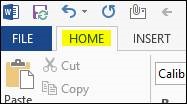
Then click on the little arrow at the bottom of the list with all the text and paragraph styles.

This will bring up the Styles window. At the bottom of the window you’ll find the button for the Style Inspector.

When you click on any text in your document, the Style Inspector will tell you the default paragraph and text formatting plus any paragraph and text formatting that has been applied manually.
 In this example you can see that default formatting for the paragraph is Normal and that text justification and an indent for the first line have been manually applied. You can also see that the default formatting for text is the Default Paragraph Font, or the font assigned to the Normal style, and that a manual font of Times New Roman has been applied.
For a document to be all right, there should not be any “Plus” formatting applied. The formatting of the paragraph and the text needs to reflect the formatting of the Style that is assigned to it, with no additional changes. If in the document you have two pieces of text that need to be formatted differently in the final output, they should have different styles applied to them, exactly like we did in the last article when we created a style for the first paragraph in every chapter and a style for centered text for the paragraph separators.
Because manual formatting can happen at any point in the document, you might have to go through it page by page and check if there is anything suspicious such as different fonts, different paragraph spacing and indent etc. In general look for anything that seems out of place or looks different from the text around it. When you find something, use the Style Inspector to check if there is manual formatting applied to that sections by clicking on it and activating the Style Inspector window as described above if you do not have it opened already.
At the end of this process we should be able to tell if the document is properly formatted. If you did not encounter any manually formatted text and everything matched the corresponding Style formatting, then you are good to go. Great! If that is not the case, you have several options depending on the extent of the changes you need to make and the length of the document.
If you are dealing with a few fixes here and there, the best way is to select the text or paragraph and apply the appropriate Style. To do this, select the text you want to change and click on the Style you want: Normal for the body of the document, Heading 1 for the chapter headings.
Note: pay attention to the text that has been formatted as italic or bold. That should not change as you apply the new Style. That is the intended behavior and exactly what you want in nearly 100% of the cases. If you want to remove that formatting as well, you can select the text and clear formatting by pressing this button in the Ribbon:

Pressing the “Clear all Formatting” button will remove all the formatting from the selected text and return it to the Normal Style. Only use this method if you are absolutely certain that you are not using any formatting such as bold and italic on purpose.
If you want to use other styles such as the one for centered text of the one for the first paragraph in the chapter, you’ll have to define them in the document as I explained in the last article.
I must say that in the vast majority of cases you’ll really need the two styles for the text and the chapter headings. And you definitely should start there. The beauty of eBooks, among many other things, is that they are not a static medium like a print book. You can modify the book at any time and all your readers – present, past and future – will get the new version. So, especially for the first few documents you format yourself, stick with the basics.
If you are dealing with a large number of changes, the best and quickest way to get back on track is to select all the text in the document and paste into the document template we created in the last article while merging the formatting.
To do this you need to have both your original document and the template open:
· Select all the text in the original document by clicking in any point in the document and press the CRTL key, hold it and press the A key (CTRL+A). This shortcut will select all the text. You can let the keys go now 🙂
· Copy the selected text to the clipboard by pressing the CTRL key again, hold it and press C (CTRL+C) for Copy. Now all the text in the document is in the clipboard, ready to be pasted somewhere else.
· Now move to the template document, delete any text that you might have in it and make sure you click on the Normal Style in the Ribbon before pasting the content of the original document
· Press the CTRL key, hold it and press the V key (CTRL+V) to paste the contents of the clipboard in the template document.
· Once you paste the text, it will look exactly like in your original document. Click on the little icon that says “(Ctrl)”. From the menu select the second option or Merge Formatting. Alternatively, as soon as you paste the text, press the CTRL key again and then the key M.
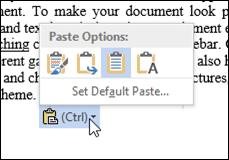
This will leave you with a plain document all formatted using the Normal Style. All the text formatting such as Bold and Italic will be preserved. All the manual formatting that was applied to the paragraphs should all be cleared and we’re now almost in a goods spot again.
The only thing left to do is to format the chapter headings with Heading 1 and, if you want, the first paragraph in the chapter to First Paragraph Style which is already defined for you.
Don’t forget to save the document with a different name by going to File, Save As and choosing an appropriate name. I usually pick the title of the book and append the word “_FINAL” to signify that this is the document I will use for formatting.
Regardless of how you got here you should have a pretty clean document:
· Chapter headings are formatted with Heading 1, no manual formatting applied.
· The body of the document is all formatted with Normal, no manual formatting applied other than text level formatting such as bold and italic.
· Optionally the first paragraph of each document is formatted with First Paragraph.
· Optionally the paragraph separators are formatted with Centered Paragraph.
This concludes the stage of preparing the document for formatting. The companion video to this article is here.
Now we’re ready to go to the next step and leave Word to dive into other tools to assemble the different pieces of the eBook together.
If you have questions, please contact me @robertoruggeri
Permafree: The Voyage, Week 4
I can’t believe a month has already passed by since Amazon matched The Priest’s price to free. The month of April has been sleepy in the downloads department, 36 so far, but even one or two of them at day make a difference in climbing the science fiction and dystopian category. Again, this is a marathon not a sprint.
Following several marketing suggestions I was given by both Julia Hughes and Sean Campbell, I have lowered the price of all my books to $2.99, and they will be soon out of kindle select and available on every platform through Smashwords.
Amazon.com Best Sellers Rank: #7,346 Free in Kindle Store (See Top 100 Free in Kindle Store)
- #97 in Kindle Store > Kindle eBooks > Science Fiction & Fantasy > Science Fiction > Dystopian
Amazon.co.uk Bestsellers Rank: #10,239 Free in Kindle Store (See Top 100 Free in Kindle Store)
- #79 in Kindle Store > Books > Science Fiction & Fantasy > Science Fiction > Dystopian
Pretty Words – A Good Start is Key #3
This week we’ll get deeper into the workflow of formatting your novel. I will use Word 2013 as my word processor, even though the recommendations and steps will largely apply to any recent version of Word or comparable programs. Additionally, we’re not going to deal with embedded images for now. They add quite a bit of complexity, mostly due to the variety of devices that your eBook can be read on. We will deal with images in a future article.
Without a doubt, the single most important piece of advice I can give you when it comes to formatting your work, is to start with a clean Word document. In other words, the work of formatting your document starts as you write it, not when you’re done.
What do I mean by “clean?”
A clean document is one that avoids, as much as possible, any direct text formatting. While it’s Ok to apply formatting such as bold and italic, you should avoid at all costs formatting such as font size, color, paragraph spacing and indent, page margins, tabs or spaces to align text, multiple paragraph marks to go to next page, page borders etc.
The reason is because all these settings translate very poorly to an electronic format that can be read on a multitude of devices. Additionally you will want to leave the reader in control of settings such as font size and font face.
Before we start, I want to briefly explain how Word deals with text formatting. Word uses Styles to define how text will look like. A Style is a collection of properties such as font size and color, paragraph spacing and indent and many, many others. You use different kinds of Styles for different kinds of texts. A Style for the body of the document, a Style for the chapter titles, etc. If you want to change the look of a particular kind of text, you simply change the Style definition. In a single step you will have changed the look of all the text and paragraphs with that style in the document, without having to manually change each individual piece.
This is a very powerful feature in Word, unfortunately is one of the least used and understood. Understanding how this works will make your life much easier later.
This gives us some indication of how we need to approach the document:
· Every piece of text that should be formatted in a specific way, should have its own style definition. In our case we care about:
o The style of the chapter headings – typically “Heading 1” in Word
o The style of the text of the document – typically “Normal” in Word
o The style of the text of the first paragraph in each chapter – we’ll have to define this one
o The style for centered text – we’ll have to define this one
· Any changes to the way the text looks should be applied to the style, not the text or the paragraph. This way the definition of the formatting will remain the same for each piece of text with that formatting
· The only formatting that should ever be applied to the text directly are bold and italic
The good news is that when you start a new document, Word already gives you most of what you need. The “Heading 1” and “Normal” Styles are already defined and you should use those to begin with. I will show you how to define the other two.
For this first part I am going to assume that you’re starting your novel from scratch with a new document. That will give you a basic understanding of the process. In the next article we’ll have a look at how to turn your existing document into one that can be easily formatted.
The first step is to create a template that we will use for all of our future novels. The initial part is always the same, so let’s do it once and for all.
Let’s start by creating a new document in Word. Write “Chapter 1” and press Enter, then write two full paragraphs separated by paragraph marks. Make sure you write enough text so that the paragraphs wrap around.
At the end you should have something like this:
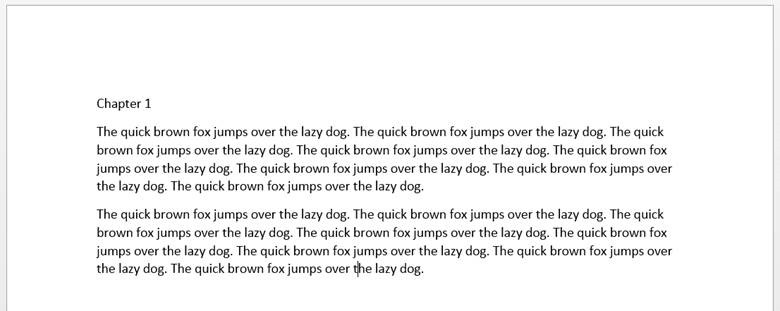
The first thing we want to do is define the style for the paragraphs of the novel. We will first change the formatting of the first paragraph in the text to what we want, then update the definition of the Style “Normal” to reflect the changes we made. This way everything that is formatted Normal in the document will look exactly like we want.
Let’s start by right clicking on the second paragraph and select “Paragraph…” This will open a dialog box that will allows us to change the paragraph formatting.
Now let’s do the following:
· Under Indentation, Special, select “First line” from the drop down and enter 0.2” where is says “By”.
· Under Spacing, After, enter “0 pt”
· Under Line spacing, select “Single” from the drop down

Press the Ok button to close the dialog box and get back to the document.
Now the first paragraph will show a small indent and no spacing after it. We want to change the definition of the “Normal” style to reflect that. To do that, right click on the Normal style in the toolbar and select “Update Normal to Match Selection”.

Once you do that, every paragraph in the document will change to show the formatting we just applied. Since every single paragraph is formatted as Normal, this is expected and a good thing indeed.
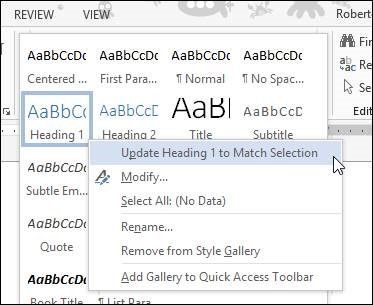
Let’s get to the heading style now. Click on the paragraph that says “Chapter 1” and select Heading 1 in the list of styles. You’ll notice now that the chapter heading is not quite right, as it starts with an indent instead of right along the left margin. To fix that, right click on the “chapter 1” text and select “Paragraph…” Under Indentation, Special, select “(none)” and then press Ok. We now want to update the definition of Heading 1 by right clicking on the Style and selecting “Update Heading 1 to Match Selection”
The last thing we want to do is create a style for the first paragraph in each chapter. When not specified otherwise, the Kindle reader will automatically apply a paragraph indent. This improves legibility and it’s generally a good thing. It’s also good habit to have the first paragraph of each chapter indented at 0”.
To do that, right click on the first text paragraph in the template, right after the chapter heading and select “Paragraph…” Under Indentation, Special, select “(none)” and then press Ok.
To define a new style based on the new formatting, open up the list of styles and select “Create a Style”.

Name the Style “First Paragraph” and press Ok to add it to the list.
At the end of the process, you end up with a document that looks something like this:

Your styles will be ready to use:
· Heading 1: use this for all the chapter headings
· First Paragraph: use this for the first paragraph of each chapter
· Normal: use this for all the rest of the document
Now you can save this document and use it whenever you want to start writing something. Just make a copy and use it as a starting document. This way all the styles will be already defined for you and you can concentrate on writing right away.
As a bonus I have shot a short video to show you how to do it, and I have uploaded a document template here where I have already done all this for you. In the video, I also show you how to define a fourth style for centered text, used mainly as a separator between paragraphs when you do not need a new chapter.
Next time we’re going to look at converting an existing document into a format that will be easier to format. See you next time. If you have any questions ask Monica or me @robertoruggeri.
Permafree: The Voyage, Week 3
It is the second day of April, and there are only 4 downloads in the USA, which combined with the fewer and fewer downloads experienced during the last seven days has determined The Priest’s fall of grace from the Free Bestseller chart.
Amazon Best Sellers Rank: #7,530 Free in Kindle Store (See Top 100 Free in Kindle Store)
- #100 in Kindle Store > Kindle eBooks > Science Fiction & Fantasy > Science Fiction > Dystopian
To gain back some visibility, I’ll have to submit The Priest to all the sites that advertise free and discounted titles.
But, besides the bleakness of the data, I found this while browsing, and although I know the banner shows The Priest as a suggestion because I was checking my book on Barnes & Noble, this sight still made me happy.

Operation Mallory
Several times, I’ve extolled the virtues of the indie world and the wonderful authors I met on Twitter and Facebook. When people complain that technology is limiting interactions in real life, I can’t help but think that I would be so alone without said technology.
Recently, Julia Hughes contacted me and asked if I wanted to give a hand in a collective effort to help a fellow author in need, Stephen C. Spencer. Stephen has been battling brain cancer for a while, and doesn’t have the time and energy to keep marketing his books. As any indie author knows all too well, if you don’t advertise your books they disappear, buried under millions of other titles. Soon, your sales dwindle to nothing and your livelihood is seriously compromised. Imagine having to pay exorbitant medical bills on top of that.
Authors following Stephen on Twitter and Facebook—fans of his books—touched by his personal tribulation decided to do something for him, and Operation Mallory was born.
Several authors have come together to help revamp Stephen’s thriller series and put his books once again on bookshelves worldwide. Sean Campbell has put together a new website, found a graphic designer, Clarissa Yeo, who created brand new covers for the series, coordinated the cover and blurb release, and looked for venues where to advertise the titles. As you can imagine, it took a great effort to manage a launch of such magnitude.
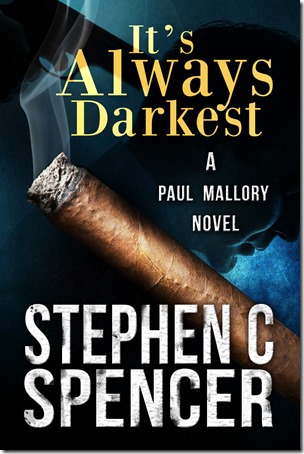 At the moment, the first Paul Mallory novel, It’s Always Darkest, is free on Smashwords. If you like thrillers, grab a copy and please consider spreading the word. Sharing is free, but it can make a huge difference for an author to be discovered.
 Monica La Porta